ContactMerge+ · Guide
How to merge duplicate contacts safely
Preview first, pick a primary card, merge only when it looks right, and use on-device Undo or Recovery History if you need to reverse a change. Built for people who have seen a “merge mess” and never want that again.
If you are afraid of ruined contacts, start here
App Store reviews for contact cleaners often mention the same fear: someone merged too fast, lost a number, scrambled a note, or ended up with a worse mess than before. That fear is rational. Merging writes to Contacts. A safe flow is not “trust the app blindly”—it is preview → choose primary → confirm only when it looks right → know how to Undo.
ContactMerge+ Cleaner is designed around that order. Scanning, matching, and merging run on your iPhone. Your address book is not uploaded to our servers for processing. Still: go slowly on the first few groups until the preview habit feels natural.
Before you start
- Use a device you trust; Contacts access is required.
- Optional: export a vCard (.vcf) backup from the app or from Contacts if you want an extra copy. This is optional—ContactMerge+ does not force a .vcf export before merge. Merges write an on-device recovery journal instead.
- If a secondary card has an important Note, copy it somewhere safe first. Notes on secondary cards are not read or migrated into the primary contact.
- If iOS View Duplicates already listed some exact pairs, you can clean those first—or leave them and scan everything in ContactMerge+. For country-code / formatting misses, see the country-code guide. If the system merge control never appears on a large list, see the large-list guide.
Step 1 — Scan on your iPhone
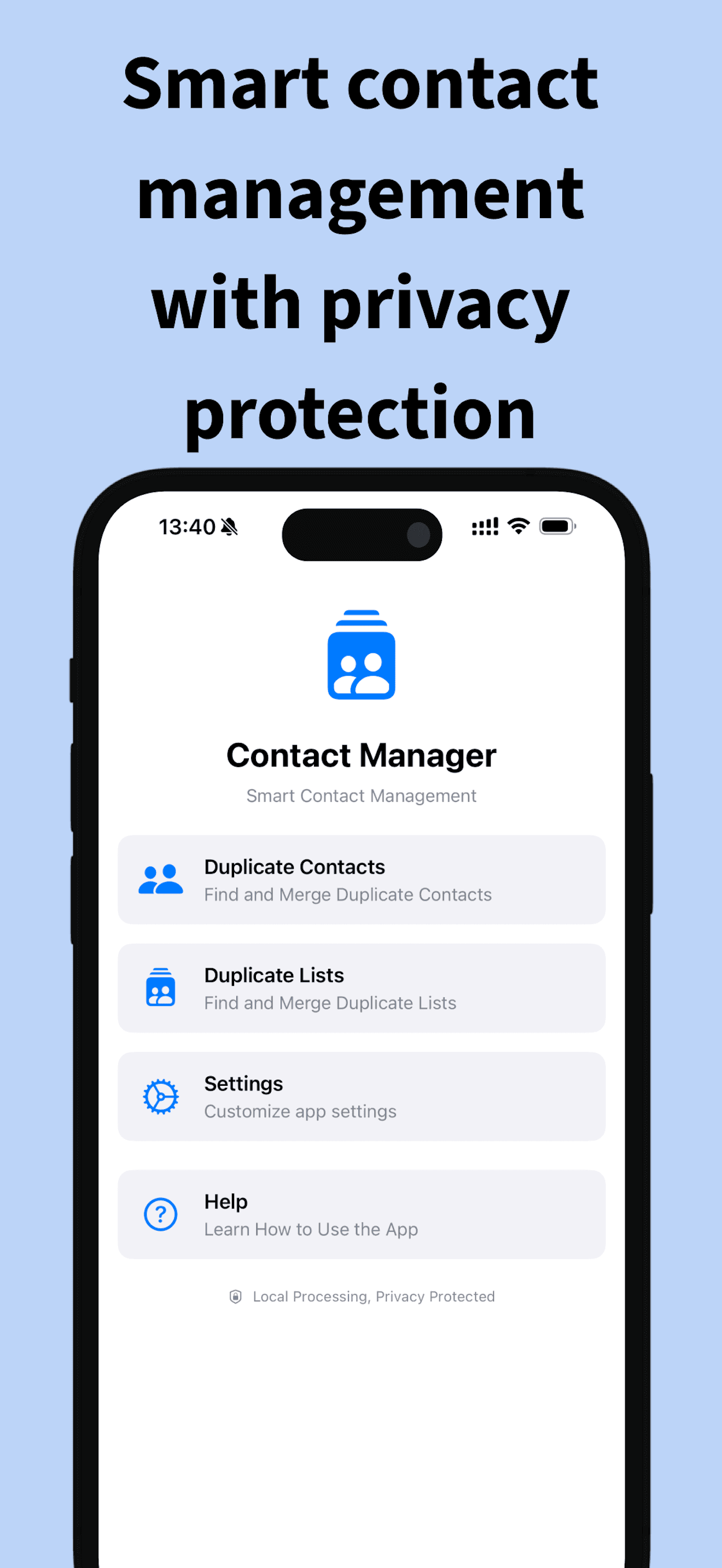
Open ContactMerge+ Cleaner and run a scan. Grant Contacts access when iOS asks. Processing stays on your device. You should see duplicate groups—not an automatic rewrite of your entire address book.
Step 2 — Open one group and preview
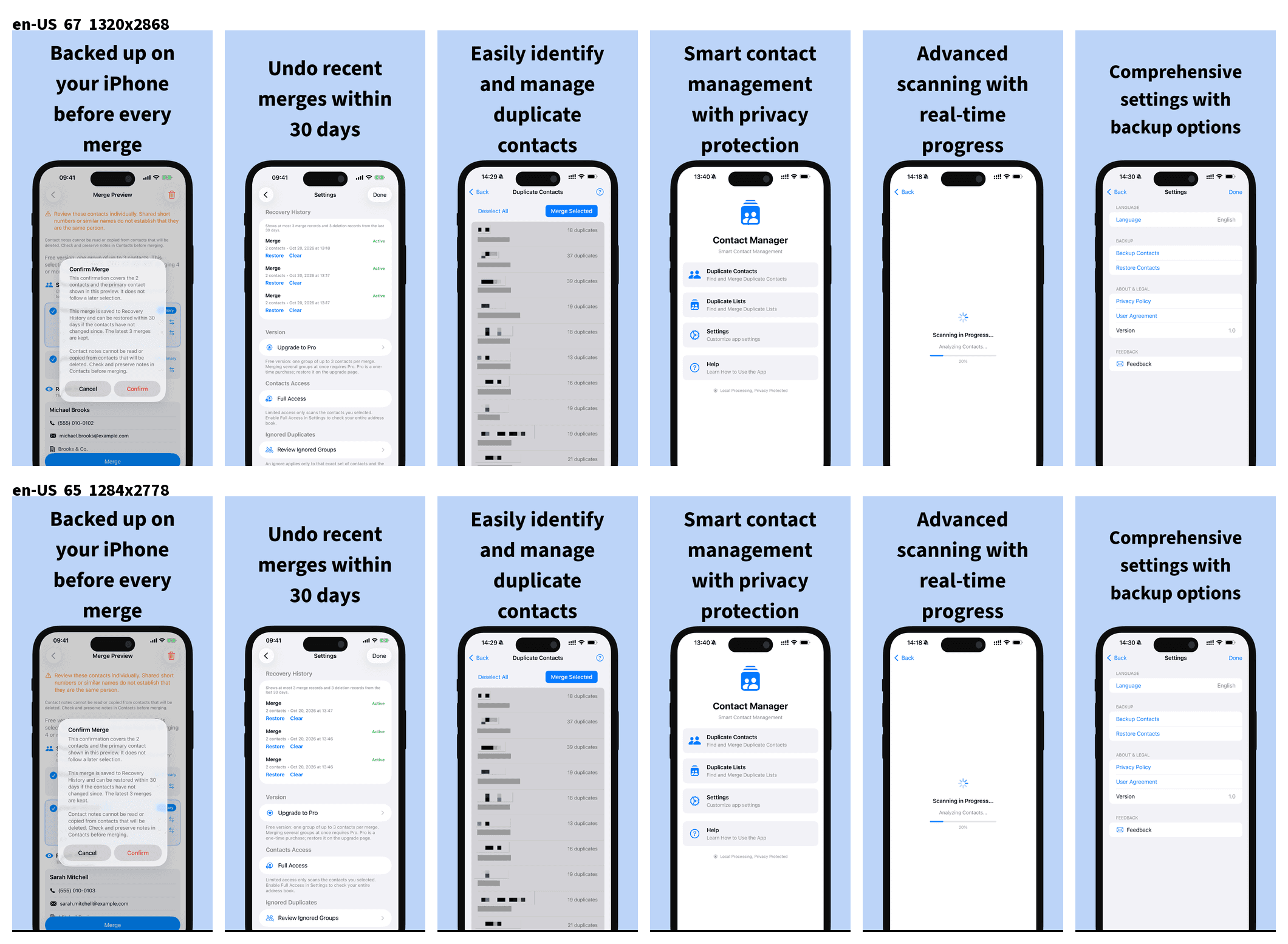
Pick a single duplicate group. Check who is listed and how fields would combine. Use preview so you see the outcome before saving. If the group looks wrong (two different people who happen to share a nickname), do not merge—close it and move on.
Ready to merge vs Needs review
After a scan, ContactMerge+ splits duplicate groups into two honest buckets—so you are not pushed to batch everything the same way:
- Ready to merge — every pair in the group matched on strict identity evidence. These are the groups Pro can include in a batch merge (merge multiple eligible groups together after confirmation). Free still merges one small group at a time.
- Needs review — evidence is weaker or conflicting (for example a shared family phone, a name mismatch, or incomplete overlap). Open each group, use preview, pick the primary, and merge only when it looks right. Needs review is not a failure—it is the safer path when the app will not claim a strict match.
That split is the product answer to “merge mess” fear: batch only what is strict; keep ambiguous pairs under your eyes.
Step 3 — Choose the primary contact
Select which card should remain the primary. Confirm names, phones, and emails look right. Prefer the card with the fuller, more accurate details as primary when you are unsure. If both cards have useful phones or emails, preview should show how they combine—read it before you confirm. On Needs review groups, this step matters most—do not rush past preview.
Step 4 — Merge only when the preview matches what you want
Confirm the merge only when the preview matches what you want. There is no prize for speed. One careful group beats ten rushed ones.
Step 5 — Undo or Recovery History if needed
- Undo last merge if you need an immediate reverse after a confirm that did not feel right.
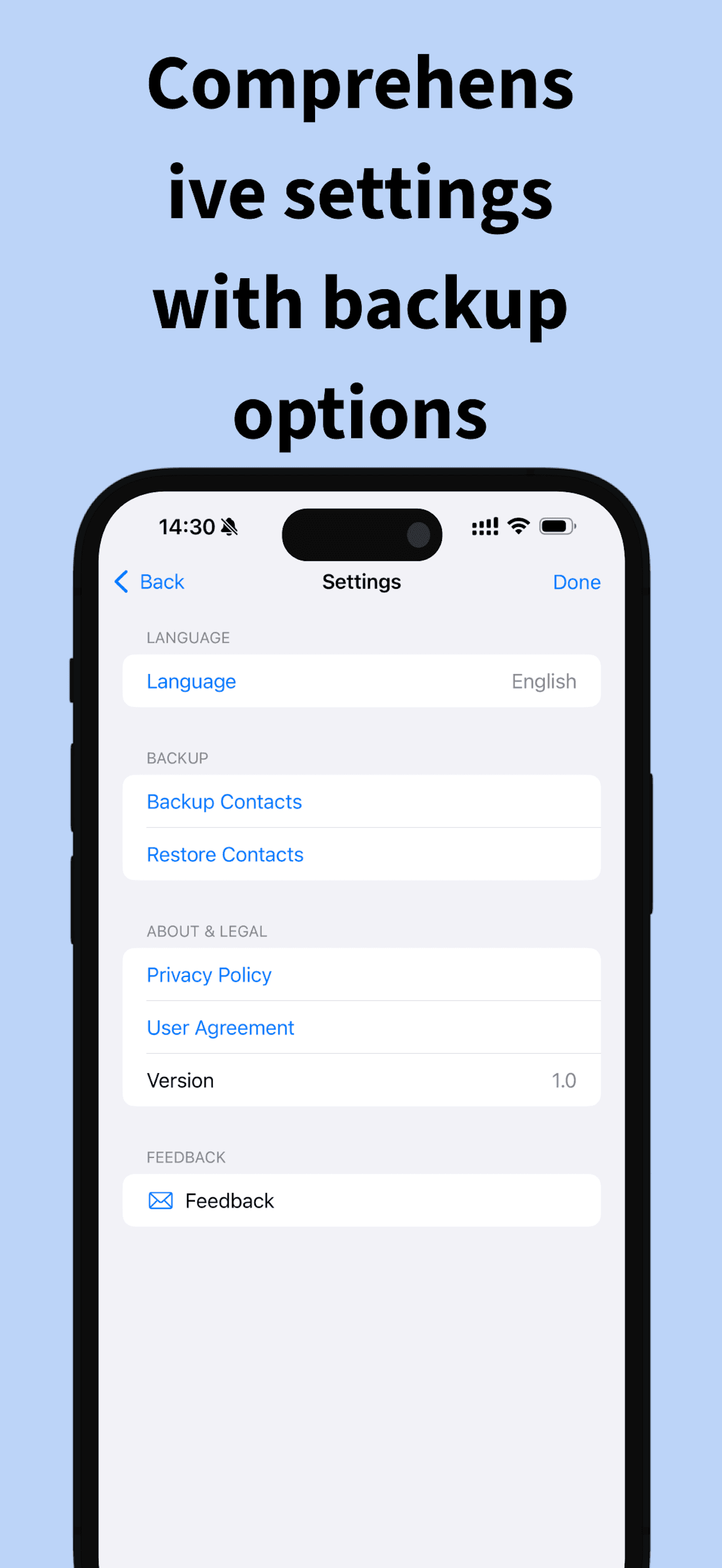
- Recovery History keeps your last 3 merges or deletes for about 30 days on device, using the recovery journal written when you merged—not a cloud restore from us.
Practice the Undo path once on a low-stakes group if that reduces anxiety. Knowing the reverse button exists is part of merging safely.
How do I undo a contact merge on iPhone?
In ContactMerge+, use Undo last merge for the most recent merge, or open Recovery History for one of the last 3 merges or deletes within about 30 days. That history lives on the device. If you need a longer-term archive, keep your own optional .vcf export—ContactMerge+ does not claim infinite undo.
Will merging duplicate contacts lose phone numbers?
A careful merge is meant to keep the phones and emails you see in preview on the resulting primary card. Losing a number usually comes from confirming without reading the preview, or from expecting Notes (and similar free-text on secondary cards) to move automatically—they do not. Read the preview. Copy important secondary Notes first. If something still looks wrong after merge, use Undo promptly.
What if a past app “ruined” my contacts?
If another cleaner already left you with missing fields or odd combinations, do not machine-gun merge the rest. Restore from your own backup if you have one (iCloud/Contacts restore or a .vcf you exported earlier). Then use ContactMerge+ one group at a time with preview. If ContactMerge+ itself did something unexpected, email nine@bigbeefit.com with your iOS version and what you expected vs what happened—crop private details from screenshots when you can.
Free vs Pro (so you are not surprised)
- Free: scan and view all groups; merge one duplicate group at a time, maximum 3 contacts in that group. Batch merge of multiple groups is not available on Free.
- Pro: one-time App Store purchase (price shown for your country)—no subscription. Unlocks unlimited merges and batch operations for groups in Ready to merge (strict matches). Needs review groups still open one at a time with preview—batch does not override that safer path.
Free is enough to learn preview, primary pick, and Undo on a small group. Pro speeds up clean-up of strict matches; it does not remove the Need-review gate or the Undo / Recovery tools.
Honest limits
| Topic | Behavior |
|---|---|
| vCard backup | Optional, not required to merge |
| Recovery | On-device journal; Undo + last 3 / ~30 days |
| Notes | Secondary-card notes not read or migrated |
| Upload | Contacts not uploaded to our servers |
| Free tier | 1 group at a time, max 3 contacts in that group; no multi-group batch |
| Pro | One-time unlock; unlimited merges + batch for Ready to merge groups |
| Ready to merge | Strict identity evidence; eligible for batch (Pro) |
| Needs review | Weaker/conflict evidence; manual preview merge only |
Quick checklist before you confirm
- Is this clearly the same person (not two different people)?
- Is the group under Ready to merge or Needs review—and are you treating it accordingly?
- Does the preview keep the phones and emails you care about?
- Did you copy any important Note from a secondary card?
- Do you know where Undo / Recovery History live if you need them?
More help
Country-code misses in system tools: see the country-code guide. Large list / merge button missing: large-list guide. Privacy: privacy policy. Support: support page. Email: nine@bigbeefit.com
Get ContactMerge+ on the App Store
Related: iOS View Duplicates and country codes · View Duplicates missing on large lists · Privacy