ContactMerge+ · Guide
Why iOS “View Duplicates” often misses country-code duplicates
If you keep two cards for the same person—one saved as a local number and one with a + country code—Apple Contacts’ View Duplicates may not list them. That usually is not “your phone is broken.” It is how literal matching treats differently formatted phone strings.
Start with Apple’s built-in tool (when it helps)
Before installing anything, open the Contacts app and check whether iOS already offers View Duplicates (wording can vary slightly by iOS version). Use it when:
- Two cards share the same email address spelled the same way.
- Two cards share the same phone digits stored in the same shape.
- You only have a small handful of obvious clones and want a quick clean-up.
Built-in review is free, familiar, and enough for many exact overlaps. If View Duplicates finds nothing—or finds some pairs but leaves others behind—the rest of this guide explains why that happens and what to do next without panic.
If View Duplicates / Merge Duplicates never appears at all on a very large address book, that is a different issue—see when View Duplicates doesn’t appear on a large contact list.
What View Duplicates is good at
Apple’s duplicate review works well when two cards share the same email or the same phone digits stored the same way. Exact and near-exact overlaps are where the system feature shines. If you imported a messy address book once and later saved the same person again with identical fields, you will often see those pairs listed.
Where country codes and formatting get in the way
People save numbers in many shapes—especially after travel, SIM imports, WhatsApp/Telegram saves, CRM exports, or older address books. Common examples:
- UK: +44 7700 900123 vs 07700 900123
- US: +1 (415) 555-0100 vs 4155550100 vs 415-555-0100
- Spaces / dashes / parentheses: one card cleaned up, the other still “raw”
- Leading zero vs country code: local trunk prefix on one card, +CC on the other
To a person, those are clearly the same line. To a simple comparison, they can look like two different values. Country codes make this especially common if you travel, import SIM entries, or sync from older address books.
Before / after: what “same number, different string” looks like
Imagine one person, two cards. Nothing is “wrong” with either card—they just store the phone field differently.
| Card | How the number was saved | What a person sees | What a literal match sees |
|---|---|---|---|
| Alex — Card A | +1 (415) 555-0100 | Alex’s mobile | String A |
| Alex — Card B | 4155550100 | Same Alex’s mobile | String B (different) |
| Sam — Card A | +44 7700 900123 | Sam’s UK mobile | String A |
| Sam — Card B | 07700 900123 | Same Sam’s UK mobile | String B (different) |
After a careful merge you want one card that keeps the phones, emails, and names you care about—not two half-complete cards that keep confusing Messages and FaceTime. The goal is clarity, not deleting history for sport.
Literal matching vs normalized matching
Literal matching compares phone (and sometimes name) fields largely as stored strings. If punctuation, spaces, a leading zero, or a country code differ, the values may not count as the same—even when a human would dial either and reach the same person.
Normalized matching first reduces common variants toward a comparable form (for example treating country-code and local forms of the same line as related, and ignoring some punctuation). That is how many dedicated duplicate cleaners surface groups that a quick system pass never listed.
We are not saying Apple’s tool is defective. We are saying string-level differences (country code, punctuation, leading zero) often fall outside what a quick system pass treats as the same contact. Both approaches have a place: built-in for obvious clones; normalized scan when formatting noise is the real problem.
Why does iPhone View Duplicates miss duplicates?
Search results and forums often phrase this as “View Duplicates not working.” More precisely: it may be working as designed for the matches it knows how to propose, while still skipping pairs that only look alike after formatting is normalized. If your duplicates differ mainly by country code or punctuation, missing them is a common outcome—not proof that Contacts is corrupted.
Is Apple Contacts broken if duplicates stay?
Usually no. Duplicate cards are a data-shape problem: multiple saves over years, different apps writing numbers differently, and sync from older sources. Treat it as cleanup work, not a hardware failure. If Contacts itself crashes, sync accounts fail, or cards disappear without you merging, that is a different issue—back up and contact Apple Support for those cases.
How do I find duplicates iOS View Duplicates skipped?
- Finish any pairs Apple already listed, if they look correct.
- Scan with a tool that normalizes common phone and name patterns—ContactMerge+ Cleaner does this on device.
- Open each suggested group, preview the merge, pick a primary card, and only confirm when the preview looks right.
- Prefer Undo / Recovery History over guessing. See the safe merge guide for the full flow and honest limits (including Notes on secondary cards).
How ContactMerge+ helps (without hype)
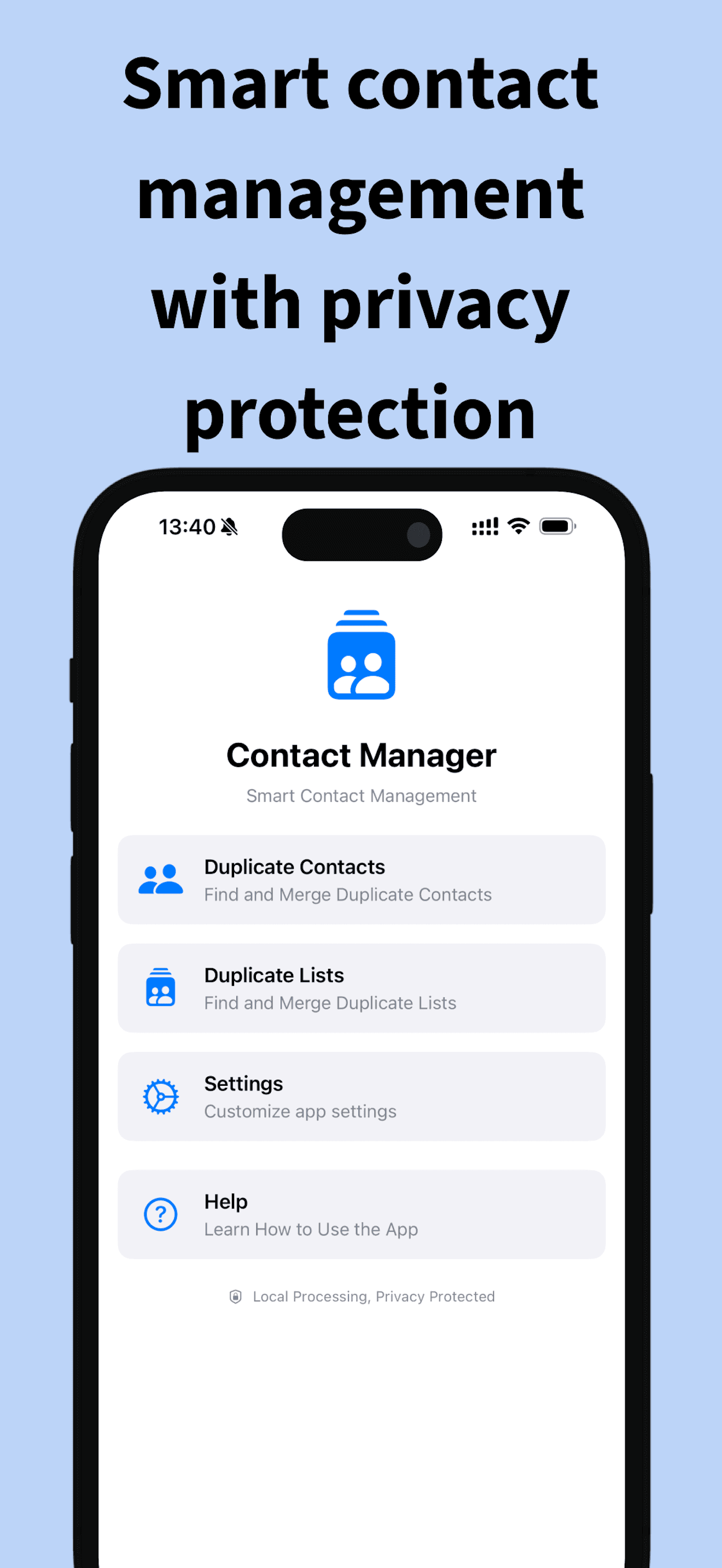
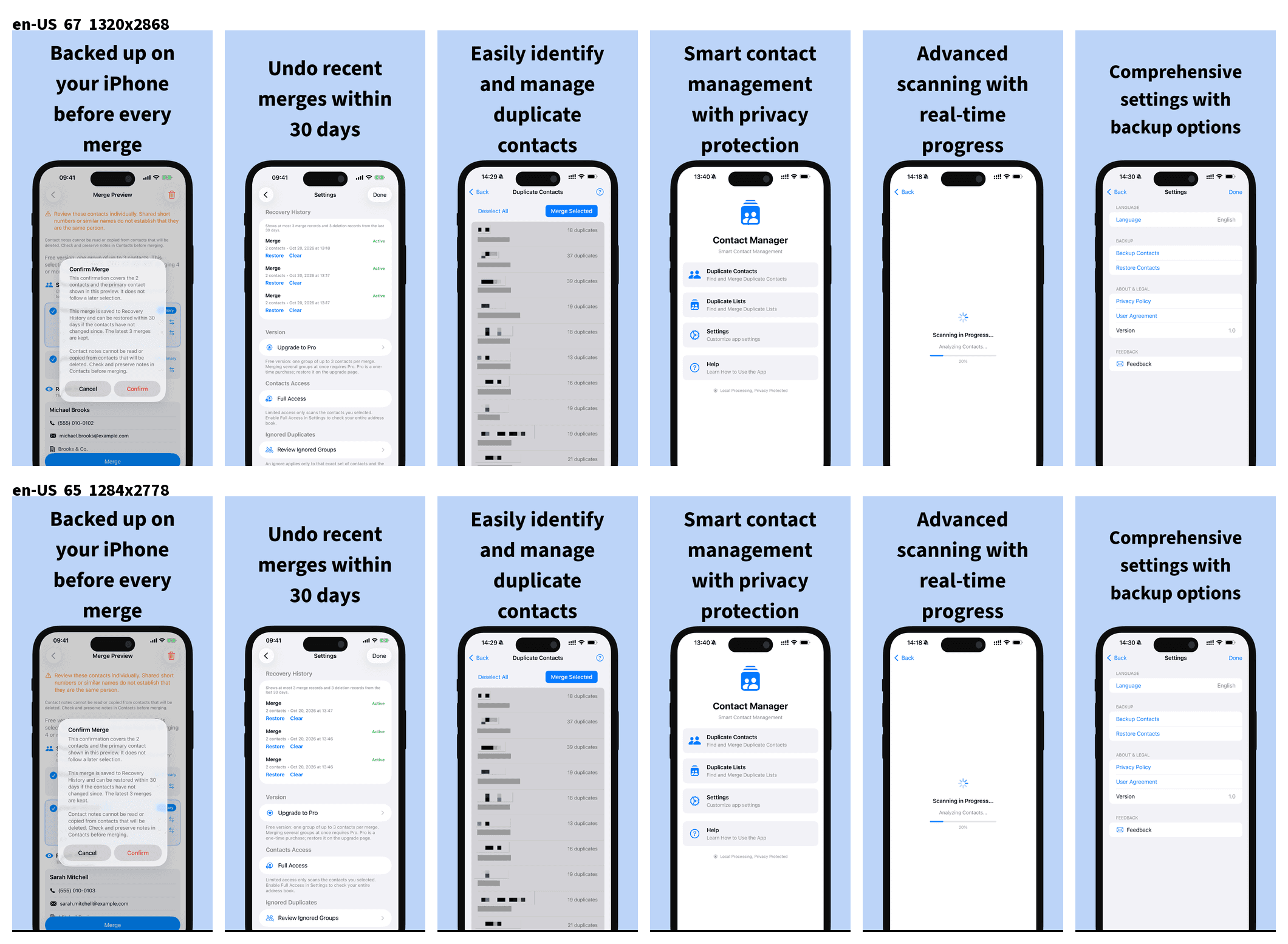
ContactMerge+ Cleaner scans on your iPhone and groups contacts that look like duplicates after common phone and name normalization—so country-code and formatting variants are easier to spot. Results split into Ready to merge (strict matches, eligible for Pro batch) and Needs review (open and preview one group at a time). You still get a preview before anything merges. You can undo the last merge or use Recovery History (last 3 merges or deletes, about 30 days, on device) if you change your mind. Contacts are not uploaded to our servers for processing.
What to do next
- Try View Duplicates first for any exact pairs Apple already sees.
- Open ContactMerge+ and run a scan (Contacts permission required).
- Review groups that look like the same person with different number formats.
- Preview, pick the primary card, then merge only when it looks right.
Free tier: one duplicate group at a time, maximum 3 contacts in that group. Pro is a one-time App Store unlock (price shown for your country)—not a subscription. Full safe-merge steps, Undo, and Notes caveat: How to merge contacts safely.
Try ContactMerge+ on the App Store
Related: View Duplicates missing on large lists · How to merge contacts safely · Support